Production Setup Guide: LINE Messaging API + LIFF + LINE Login + Rich Menu
14/05/2026 • 10 min read
1) Prepare system values first
Prepare your production domain, for example: https://queuebooking.com, and each shop key (e.g., SHOP-TTLS2P).
Confirm required endpoints exist: /api/line/webhook/{shopKey}, /liff/{shopKey}, /liff/{shopKey}/member.
Use 2 LIFF apps: one for booking flow and one for member profile/history flow.
2) Configure Messaging API and Webhook
Open LINE Developers > your OA channel > Messaging API, then copy Channel access token (long-lived) and Channel secret to your system.
Set Webhook URL to https://queuebooking.com/api/line/webhook/{shopKey}.
Enable Use webhook and click Verify.
Disable conflicting OA auto-replies so your system controls responses.
3) Configure LIFF for Booking
Create LIFF app (e.g., queuebooking), Size = Full.
Set Endpoint URL to https://queuebooking.com/liff/{shopKey}.
Recommended scopes: openid, profile, chat_message.write.
Save LIFF ID into your booking LIFF setting / NEXT_PUBLIC_LIFF_BOOKING_ID.
4) Configure LIFF for Member page
Create a second LIFF app (e.g., queuemember), Size = Full.
Set Endpoint URL to https://queuebooking.com/liff/{shopKey}/member.
Use the same scopes if needed (openid, profile, chat_message.write).
Save LIFF ID into member LIFF setting / NEXT_PUBLIC_LIFF_MEMBER_ID.
5) Configure LINE Login (if using separate channel)
If you use a dedicated login channel, configure callback URL on your production domain.
LIFF can be your main login flow; use LINE Login channel only where needed.
Do not mix LIFF IDs across channels without updating endpoint/env values.
6) Configure Rich Menu links
Button 1 (Booking): https://liff.line.me/{LIFF_BOOKING_ID}.
Button 2 (Member): https://liff.line.me/{LIFF_MEMBER_ID}.
Publish and assign the rich menu to your OA.
Test both buttons from LINE mobile app and verify correct destination pages.
7) Invalid LIFF ID checklist
LIFF ID in DB/env must match the exact LIFF app configured in LINE Developers.
Endpoint path must match exactly: booking /liff/{shopKey}, member /liff/{shopKey}/member.
Use HTTPS and production domain consistently.
After env updates on Vercel, redeploy before testing again.
8) End-to-end verification
User taps rich menu > books queue > receives confirmation in LINE.
Booking should appear in portal dashboard immediately.
User taps member menu and can view profile plus booking history.
Attachments and setup screenshots
Compare your LINE console values with these examples before verifying and publishing.
Download LINE setup guide (PDF)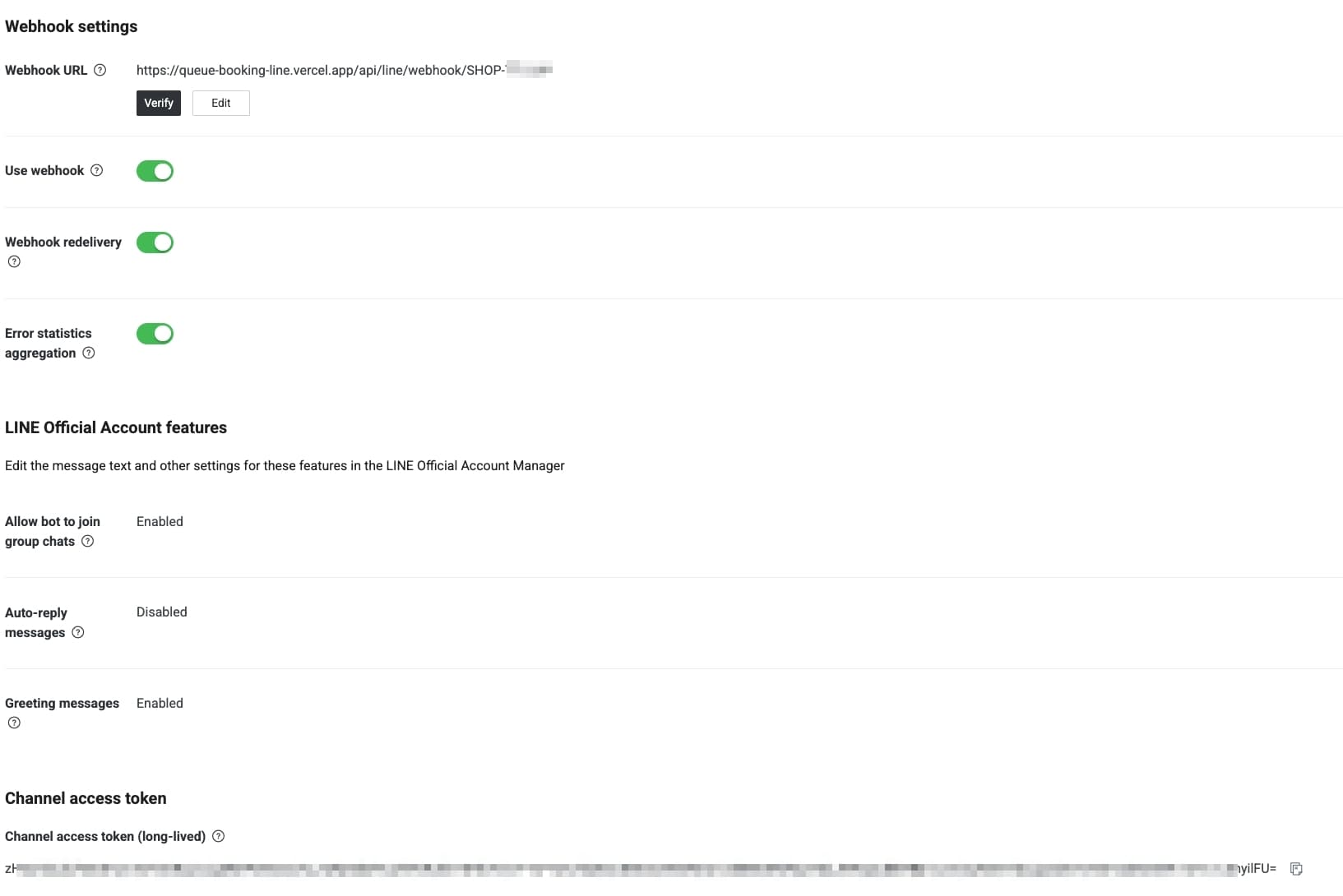
Messaging API and webhook URL setup example
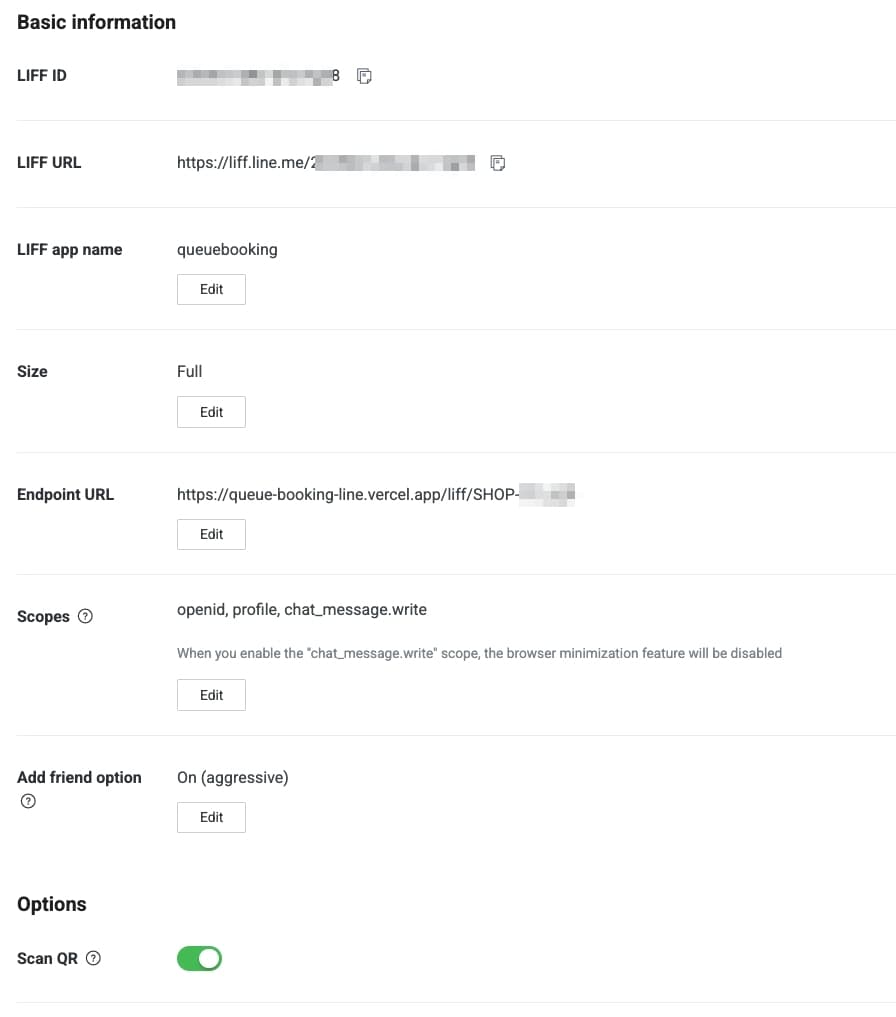
LIFF app for booking page (/liff/{shopKey})
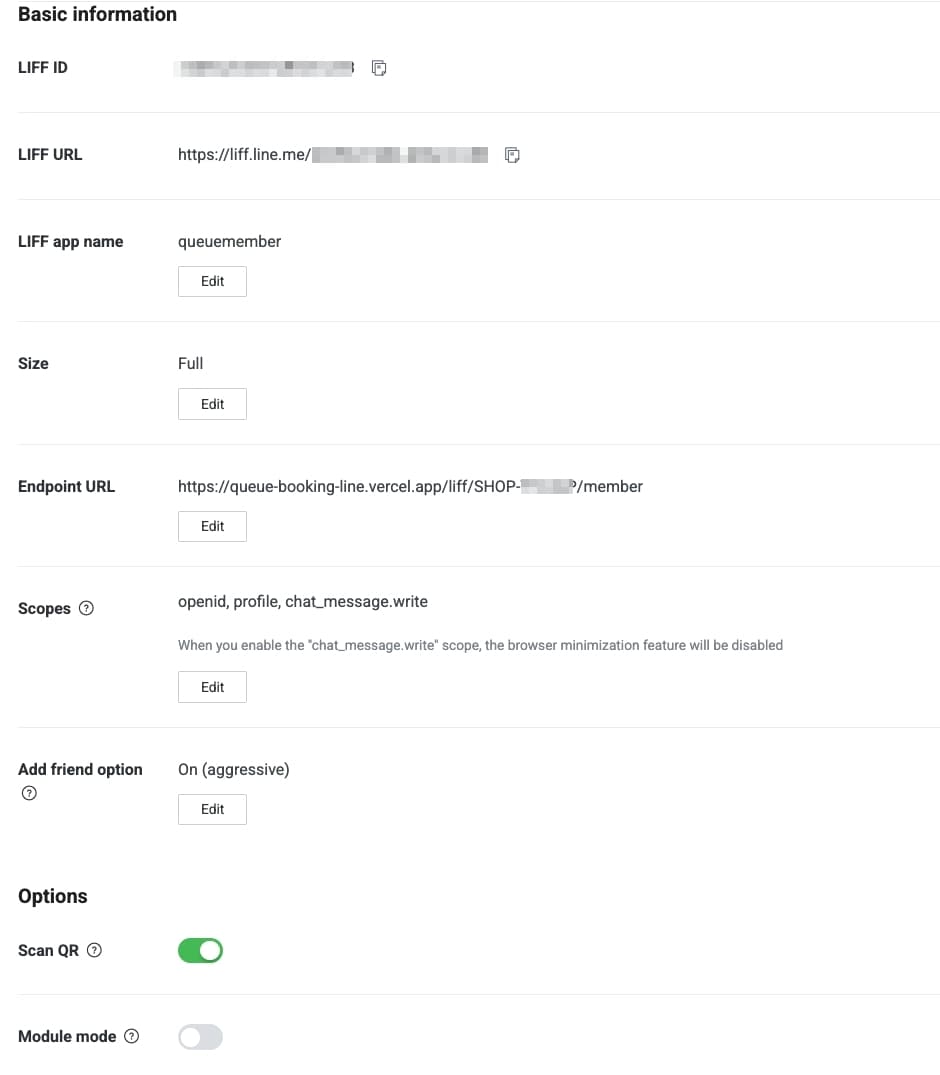
LIFF app for member page (/liff/{shopKey}/member)
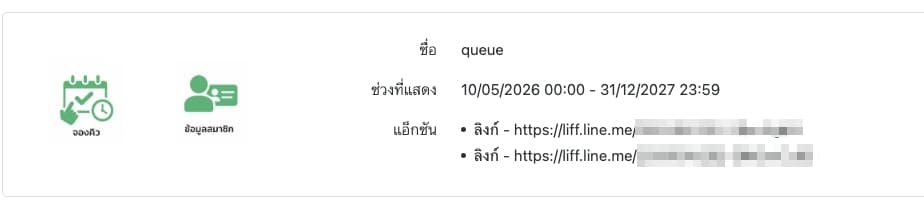
Rich menu with 2 links: Booking and Member